
How to Turn Excel into a Meeting-Ready PowerPoint Automatically with AI
To create a PowerPoint from Excel automatically with AI, upload a clean Excel file to an AI workspace, state the presentation's goal and audience, and ask the AI to produce a summary, charts, and editable slides. Once the draft is ready, check the numbers, sharpen the storyline, and apply your company template.
edic Insight
- Six steps, one key habit. Define the goal and audience, upload a clean file, write instructions, review the summary, request the slides, then validate. Separating the summary stage from slide creation has the biggest effect on output quality.
- Time is lost before the first slide opens. A 2012 McKinsey Global Institute report found employees spend about 1.8 hours a day, or 9.3 hours a week, searching for and gathering information.
- Four ways from Excel to PowerPoint, only one that analyzes. Copy-paste, paste link, and embed only move tables or charts. AI also reads the data, summarizes findings, and drafts the slides.
- Clean files drive accuracy. One header row, one topic per sheet, consistent date and number formats, and no merged cells or manual subtotals.
- One chart, one message. Lines for trends, bars for comparisons, waterfalls for gaps, and scatter plots for relationships between two variables. Pie charts only for 4 to 5 categories.
- Conclusion first, evidence after. An executive summary up front, detail slides with conclusion titles, and recommendations with clear owners.
- Validate before sharing. Reconcile totals with SUM in Excel, check the data period, spot-test three numbers, and review rounding and units.
To create a PowerPoint from Excel automatically with AI, upload a clean Excel file to an AI workspace, state the presentation's goal and audience, then ask the AI to produce a summary, charts, and editable slides. Once the draft is ready, your job is to check the numbers, sharpen the storyline, and apply the company template. Work that usually takes hours can be done much faster, depending on how complex the data is.
Most guides on Excel to PowerPoint stop at the technical part: how to copy a table, paste a chart, or link a file. Yet the hardest part of a data-driven presentation happens before and after that transfer, namely deciding on the key message and making sure the numbers are right. This guide covers both, from preparing the file, choosing charts, and structuring slides to validating the AI's output before you take it into the meeting room.
Why Does Building Slides from Excel Take So Long?
Building slides from Excel takes time because the work has three separate stages: finding and cleaning the data, identifying findings worth showing, then moving the numbers onto slides one by one. Every time the data is updated, all three stages often have to be repeated from scratch, so time is spent on copying and formatting.
The problem starts even before the first slide is opened. A 2012 McKinsey Global Institute report found that employees spend an average of about 1.8 hours a day, or 9.3 hours a week, searching for and gathering information. For teams that prepare monthly reports, that figure feels real: sales data sits in one file, targets in another, and campaign notes are stored in email.
In practice, four points slow the process down most often:
- The data is not ready to use. Date columns are inconsistent, there are merged cells, and subtotal rows are mixed in with raw data.
- Insights have to be found manually. Pivot tables and filters are built again and again just to answer "which branch declined?".
- Formatting does not carry over cleanly. Copy-pasted tables often spill off the slide or change font.
- Repeated revisions. As soon as a manager asks for a different angle, the charts have to be rebuilt.
What Are the Ways to Convert Excel to PowerPoint, and Which Is Most Efficient?
There are four common ways to convert Excel to PowerPoint: regular copy-paste, paste link, embedding an Excel object, and using AI. The first three only move tables or charts you have already built yourself. AI goes further because it also reads the data, summarizes the findings, and drafts the slides in a single workflow.
The three manual methods are built into PowerPoint. According to the official PowerPoint documentation, linked Excel data can be updated by right-clicking and selecting Update Link, while regular copy-pasted data does not receive automatic updates from the worksheet. The embed option stores a copy of the table inside the presentation file so it can still be edited in Excel.
|
Method |
How it works |
Advantages |
Limitations |
Best for |
|---|---|---|---|---|
|
Copy-paste |
Copy cells or a chart and paste onto the slide |
Fast, no setup |
Does not update when the data changes |
One-off presentations |
|
Paste link |
Paste with a link to the source file |
Numbers can be updated |
Link breaks if the file is moved or renamed |
Routine reports with a fixed file |
|
Embed Excel object |
Insert the worksheet as an object |
Data can be edited from the slide |
File size balloons |
Detailed appendices for technical audiences |
|
AI workspace |
Upload data, give instructions, AI builds the slides |
Insights, charts, and narrative created at once |
Output still needs validation |
Periodic reports, management presentations |
If all you need is to move one chart, the manual methods are enough. For reports that management reads every week or month, AI saves more time because the analysis and writing stages are automated too.
How Should You Prepare an Excel File Before Turning It into Slides?
Prepare your Excel file with a clean table structure: one header row, one topic per sheet, consistent date and number formats, and no merged cells or subtotal rows. Tidy data lets the AI read the columns correctly, so the charts and summaries on your slides are not miscalculated or misinterpreted.
The official Excel documentation recommends converting a cell range into an Excel table so that a group of related data is easier to manage and analyze. This simple step also helps the AI recognize where the data begins and ends. Here is the checklist we usually use before uploading a file:
- Convert the data into an official Excel table (Insert > Table) with column headers in the first row.
- Use descriptive column names, for example "Net_Revenue_IDR" instead of "Column F".
- Standardize date and currency formats across all rows.
- Remove merged cells, blank rows, and manual subtotals. Let the AI or formulas calculate the totals.
- Separate raw data and reference data (for example targets per branch) into different, clearly named sheets.
- Add a short notes sheet with metric definitions, the data period, and its source.
- Remove personal data you do not need, such as customer phone numbers. This step is in line with the principle of limited and specific personal data processing in Indonesia's Law No. 27 of 2022 on Personal Data Protection.
If your data is still spread across many sources, our guide on how to analyze data with AI without coding covers this preparation stage in more detail.
Steps to Create a PowerPoint from Excel Automatically with AI
Creating a PowerPoint from Excel with AI takes six steps: define the goal and audience, upload the cleaned file, write specific instructions, review the summary of findings, ask the AI to build the slides, then validate and apply the template. This order makes sure the AI analyzes the data before turning it into visuals.
- Define one business question. Example: "Why did Q3 margin fall in the East Java region?" A clear question produces focused slides.
- Upload the Excel file to an AI workspace, or connect directly to company data sources if a connector is available.
- Write complete instructions: the audience, number of slides, chart types you want, and number format.
- Ask for a summary of findings first, before the slides are built. Check whether the AI read the columns and period correctly.
- Ask the AI to build the slides based on the findings you have approved.
- Validate the numbers and tidy up the template before sharing (covered in the next section).
Separating steps 4 and 5 is the habit that most affects output quality. Data misreadings are far easier to correct at the summary stage than after they have spread across ten slides.
Example Prompt for Creating a PowerPoint from Excel Automatically
Use the following pattern and adjust the content:
I am uploading Sales_Q3_2026.xlsx, which contains daily sales data for 12 branches. The audience is the board of directors. Create 7 slides: 1 executive summary, 4 detail slides (monthly trend, branch performance against target, product category contribution, branches with the largest decline), and 2 recommendation slides. Show figures in IDR millions. Each slide title must be a conclusion drawn from the data. State the sheet and column behind every number.
The last sentence of that prompt matters because it makes it easier to trace where each number came from during validation.
Which Chart Works Best for Each Type of Data?
Choose a chart based on the message you want to convey. Use a line chart for trends over time, bars for comparing categories, a waterfall to explain the change from one number to another, and a scatter plot to see the relationship between two variables. A pie chart only makes sense for composition with a small number of categories.
The official Office documentation explains the available chart types and what each is for. Here is a practical summary:
|
Message you want to convey |
Recommended chart |
Example use |
Best avoided |
|---|---|---|---|
|
Trend over time |
Line |
Monthly sales from January to September |
3D bars |
|
Comparison between categories |
Horizontal bar or column |
Actual vs target by branch |
Pie with many slices |
|
Composition or share |
100% stacked bar or pie (4 to 5 categories at most) |
Product category contribution |
Pie with 10 categories |
|
Explaining a gap |
Waterfall |
Factors behind a margin decline |
Long tables of numbers |
|
Relationship between two variables |
Scatter |
Promotion spend vs sales per store |
Line chart without a time sequence |
|
One key number |
Large KPI card |
Total quarterly revenue |
A chart for a single value |
One chart should carry one message. If a slide needs two charts to be understood, it most likely needs to be split.
How Should You Structure the Slide Flow: Summary, Detail, Recommendation?
Structure your slides in three layers: an executive summary up front, detail slides as evidence, and recommendations at the end. This pattern follows how decision makers read reports: they want the conclusion first, then check the basis only when needed. The approach is widely known as the pyramid principle in business communication.
Executive summary slide
One slide with three to five key findings and their numbers. A director who only has time to read this slide should still be able to make a decision.
Detail slides
Each detail slide proves one finding from the summary. Use a conclusion as the title (an action title), for example "Surabaya sales fell 18% due to a two-week stockout", rather than a topic title such as "Surabaya Sales". The figures in this example are illustrative.
Recommendation slide
Close with concrete steps: what will be done, who owns it, and when it will be reviewed. Recommendations without an owner usually stop at the meeting minutes.
How to Align the Output with Your Company Template
Polish the AI-generated slides by applying the company slide master, then check five things: color palette, typeface, logo placement, number format, and data source notes. This step makes the automated presentation consistent with other official documents and ready to share with management and partners.
Standards to make sure of:
- Slide master. Apply the template through Slide Master so changes take effect across all slides at once.
- Chart colors. Use the company's primary color for the data you want to highlight, and gray for comparison data.
- Number format. Standardize units (IDR millions or IDR billions) and decimal places across all slides.
- Source notes. Include the file name, sheet, and data period in the footer of detail slides.
- Readability. Make sure text contrast is sufficient and font sizes stay legible on the meeting room screen.
If your team often builds similar presentations, save these formatting instructions as a prompt template so the next output comes out closer to the standard right away.
How Do You Make Sure the Numbers in AI-Generated Slides Are Correct?
Make sure the numbers in AI-generated slides are correct by reconciling key totals with the source file, checking the data period, and spot-testing several numbers. Ask the AI to state the column and calculation behind every number. This quick validation keeps small errors from turning into wrong business decisions.
This part is rarely discussed, yet it matters most for audience trust. The order of checks we recommend:
- Reconcile key totals (for example total revenue) with the SUM result in Excel.
- Check the date range. The AI might read incomplete September data as a full month.
- Test three random numbers on the detail slides and trace them back to the original rows.
- Check rounding and units, especially when numbers are converted to millions or billions.
- Ask about the calculation logic for derived metrics such as margin or year-on-year growth.
- Have the data owner review before the presentation is shared more widely.
A basic understanding of AI for data analysis helps you know where AI is most reliable and where human checks are still needed.
Before and After Using AI: An Example
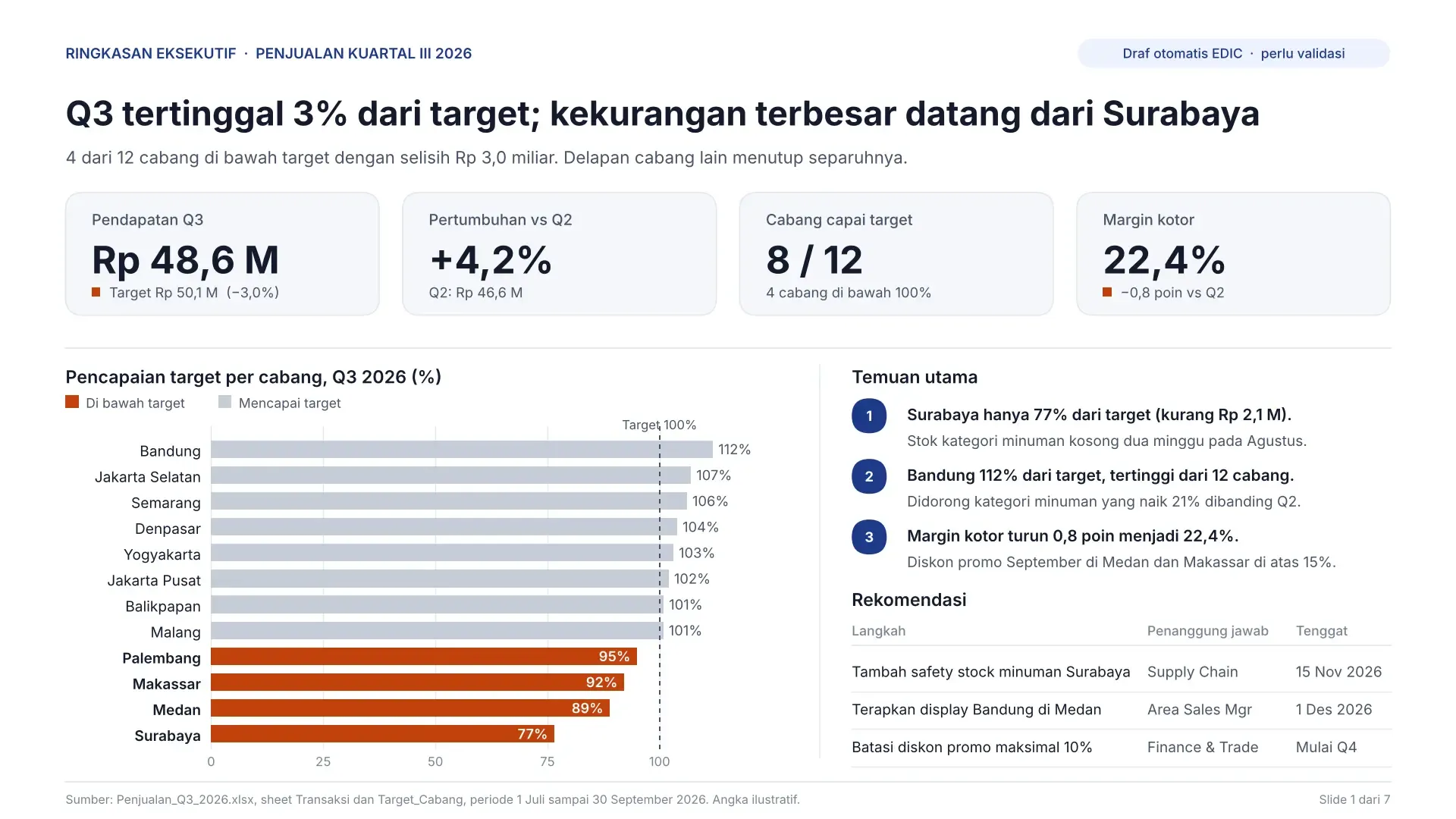
The biggest difference after using AI is in what the slides say. The manual version tends to contain tables moved over as they are, while the AI-based version contains conclusions, charts chosen to fit the message, and recommendations. The illustration below shows a quarterly sales report for 12 retail branches.
Scenario (illustration): a Sales Manager has to prepare the Q3 report for a board meeting from a file containing thousands of rows of daily transactions.
|
Aspect |
Before (manual) |
After (with AI) |
|---|---|---|
|
Process |
Build pivot tables, copy 12 branch tables, create charts one by one |
Upload the file, write a prompt, review the summary, validate |
|
Number of slides |
14 slides, mostly tables |
7 slides, each with one message |
|
Slide title |
"Bandung Branch Sales" |
"Bandung beat its target by 12% thanks to the beverage category" |
|
Charts |
Default charts with no highlighting |
Horizontal bars with below-target branches highlighted |
|
Recommendations |
Delivered verbally in the meeting |
Written on the slide, with owners assigned |
|
When data is updated |
Repeat the whole process |
Upload new data and run the same instructions |
The figures in the table above are only examples to illustrate the difference in structure.
Conclusion
Creating a PowerPoint from Excel no longer has to mean copying tables one by one. The key lies in three things: a well-structured Excel file, instructions that clearly state the goal and audience, and number validation before the presentation is shared. Manual methods remain relevant for simple needs, while AI is most useful for periodic reports that demand analysis, charts, and narrative all at once.
For teams that prepare reports for management every week, EDIC brings this whole workflow together in one AI workspace. EDIC can connect to company data and documents, answer business questions with traceable sources, generate charts automatically, then build meeting-ready presentations through Agent Mode. Data access is managed per source, and company data is not used to train AI models. For reports that always need to be current, the results can also become dashboards and reports that update automatically.
Want to see how your team's Excel data turns into a board presentation in minutes? Book an Enterprise Demo or Explore EDIC at edic.ai.
Frequently Asked Questions
Can I create a PowerPoint from Excel for free?
Yes. PowerPoint already provides regular copy-paste, paste link, and insert Excel object at no extra cost. These methods work well for moving finished tables or charts. For automated analysis and narrative, you need an AI workspace, and free plan availability varies.
How do I make charts in PowerPoint update when the Excel data changes?
Use the Paste Link option when pasting Excel data into PowerPoint, then right-click the object and choose Update Link whenever the source file changes. Keep the Excel file in a fixed location, because the link can break if the file is moved or renamed. For data that changes daily, an auto-updating dashboard is usually more practical.
Is it safe to upload company data to AI to create a presentation?
Security depends on the policies of the platform you use. Make sure the platform guarantees that data is not used to train models, offers team access controls, and lets you choose which data sources it can read. Remove irrelevant personal data in line with the principles of Indonesia's Personal Data Protection Law.
How much Excel data can AI turn into slides?
File size limits vary across AI platforms, so check the documentation of the tool you use. What matters more for output quality is the structure of the data, not the number of rows. For very large files, summarize the data first to the level the presentation needs, for example by month or by branch.
Can AI follow my company's PowerPoint template?
Most AI tools produce editable slides, so the company template can still be applied through Slide Master. You can also write rules for colors, number units, and title style into the prompt so the first draft comes closer to the standard. A final human check is still recommended before the presentation is shared.
What is the difference between an automated PowerPoint from Excel and a dashboard?
An automated PowerPoint from Excel produces a presentation for a specific moment, such as a monthly meeting, complete with narrative and recommendations. A dashboard displays metrics that are continuously updated and can be monitored at any time. Many teams use both: dashboards for daily monitoring, presentations for decision making.
References & methodology
Methodology
Data sources
The figure on time employees spend searching for and gathering information (1.8 hours a day, or 9.3 hours a week) comes from the McKinsey Global Institute report The Social Economy, published in 2012 [3].
Standards and frameworks
How copy-paste, paste link, Update Link, and embedded Excel objects work is based on the official PowerPoint documentation [1]. The advice to use Excel tables and the chart type guidance are based on official Excel and Office documentation. The summary, detail, and recommendation slide structure follows the pyramid principle in business communication.
Example cases
The Sales_Q3_2026.xlsx file, the 12 retail branch scenario, and the figures for Surabaya's 18% decline and Bandung beating its target by 12% are illustrative scenarios that show the workflow, not customer data or case studies.
Notes on figures
The McKinsey report was published in 2012, so it is used to show the scale of time spent searching for information, not as a current figure. Time savings mentioned in the article are not quantified because they depend on data complexity.
Regulation
The advice to remove unneeded personal data before uploading files refers to Indonesia's Law No. 27 of 2022 on Personal Data Protection [2].
Review process
Figures and quotations are checked against their original sources before publication, and the article is reviewed again when features, data, or regulations are updated.
 Data AnalysisAI Data Analysis Tools for Business: How to Choose the Right OneAI data analysis tools for businesses fall into four categories: general AI chat, AI inside spreadsheets, business intelligence (BI) platforms, and AI-powered data analysis platforms. The right choice depends on where company data is stored, who will query the data, and the output needed, such as quick answers, fixed dashboards, or meeting-ready reports.
 Data Analysis30 AI Prompt Examples for Sales, Finance, and Operations Data AnalysisAI prompts for data analysis work best when they include four elements: business context, a data description, a specific question, and an output format. This article provides 30 copy-ready prompts for sales, finance, and operations analysis, plus executive summary templates, a prompt chaining workflow, and four checks to make sure AI answers are accurate.
 Data AnalysisHow to Analyze Data with AI Without Coding: A 5-Step GuideTo analyze data with AI without coding: define the question, prepare data, ask in plain language, validate results, then turn insights into slides.